Attributes
Attributes let you attach custom metadata to your components in Revision, making it easier to describe, filter, and organize your models.
With them, you can describe things such as:
- Who owns a component,
- Which version it's running,
- Where to find further details (URL), or
- How critical it is
Attribute Types
Each attribute has a data type, which controls the kind of values it can hold and how it's displayed throughout Revision. The available types are as follows:
| Type | Details | Example |
|---|---|---|
| Text | Any plain text value | Codename: 你好 やっほー、世界! Hi! |
| Number | Positive or negative fractional number | Minimum temperature: -12.345 |
| Checkbox | True/false flag | Deprecated: ✅ |
| Link | Has to conform to a URL, but is not limited to HTTP(S). | Repository: https://gitlab.example.com, mailto:support@revision.app |
| User | A Revision team member | Owner: Jane Doe |
| List | Predefined set of allowed values | Priority: High, Medium, Low |
Use attribute types to ensure that data is formatted as expected, keeping your models clean.
Changing Data Types
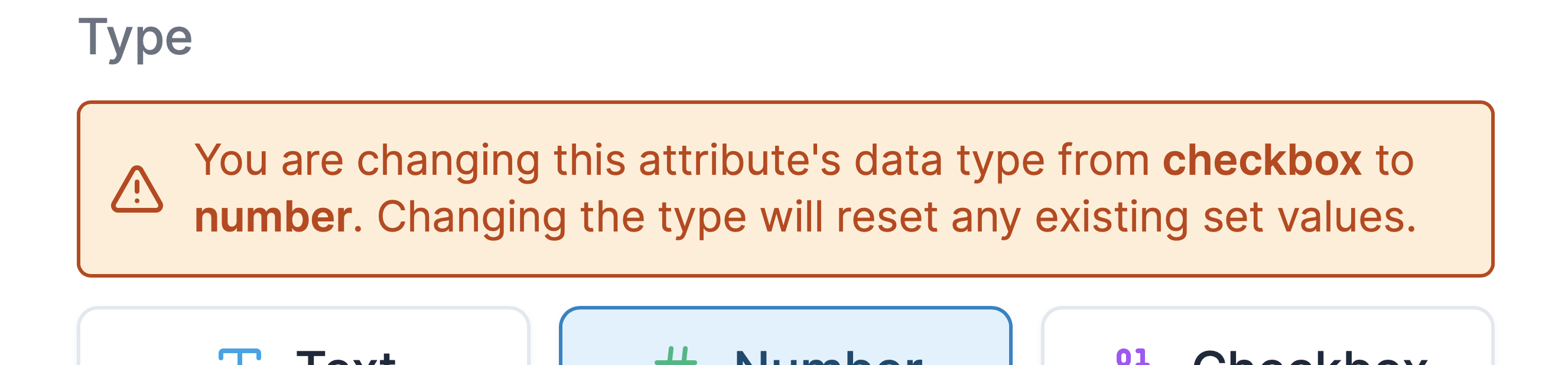
You can freely edit an existing attribute and change its type. However, note that doing so will clear any set values for that attribute. Revision will inform you if you are about to perform this destructive action:
Filtering by Attributes
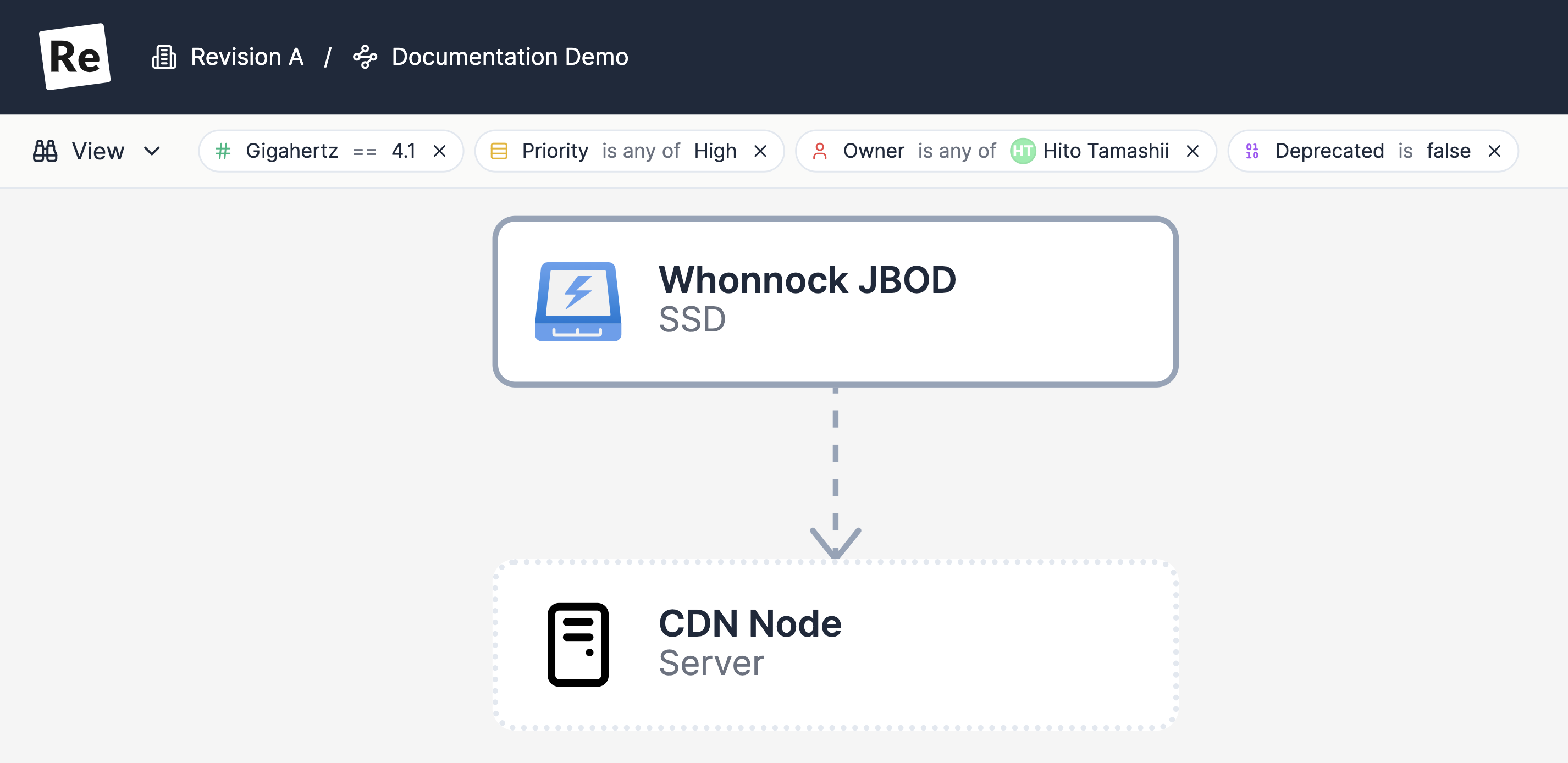
Dependency views let you filter components using any combination of attributes.
Given that attributes are typed, filters are precise—you can, for example, quickly get an overview of all components where Priority = High, Deprecated = false, .NET Version >= 4.1, and Owner != Jane.
Beyond the Basics
Limiting Attributes to Certain Component Types
Every attribute does not belong on every component. Under Advanced when creating or editing an attribute, you can choose from any bundled or custom types to limit the places where they can go. For example, if you are creating an attribute to track .NET versions of applications, you might quickly realize that these do not belong on, say, your databases.
You are able to select more than one type.
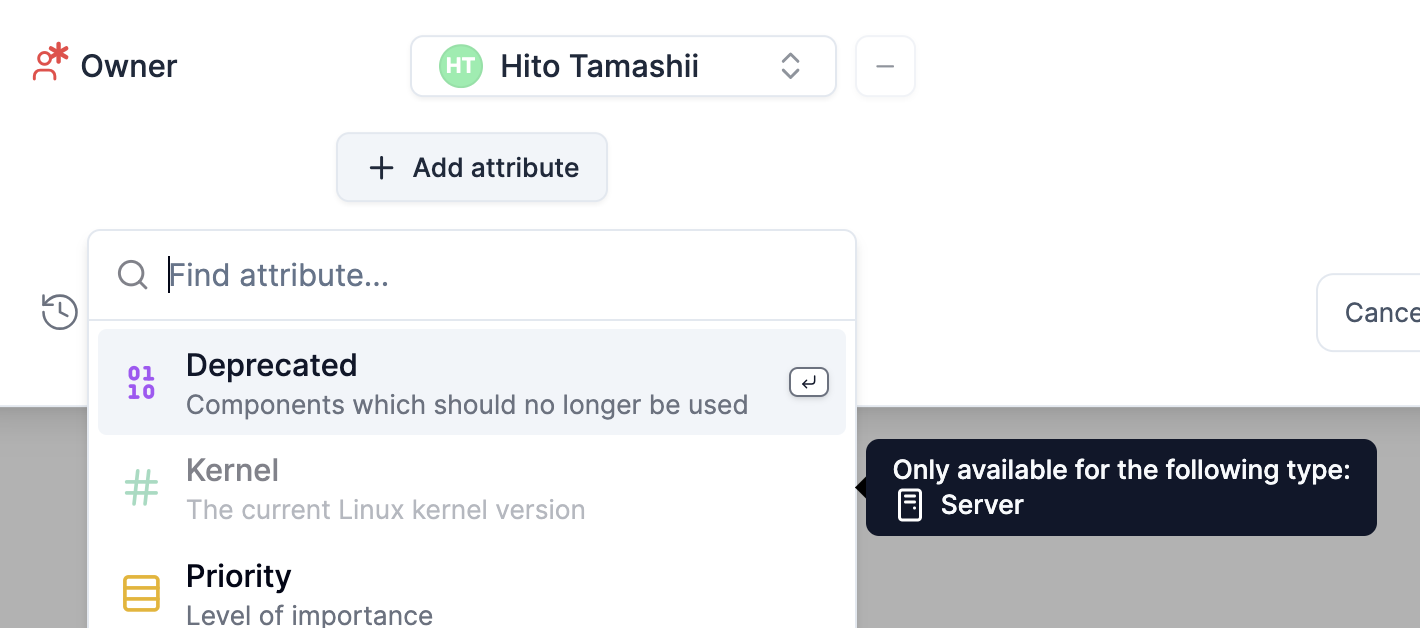
Attributes will not be automatically removed from components if the types are changed and no longer match. However, if you decide to remove them, you will be unable to add them back unless the component is of one of the permitted types.
Required Attributes
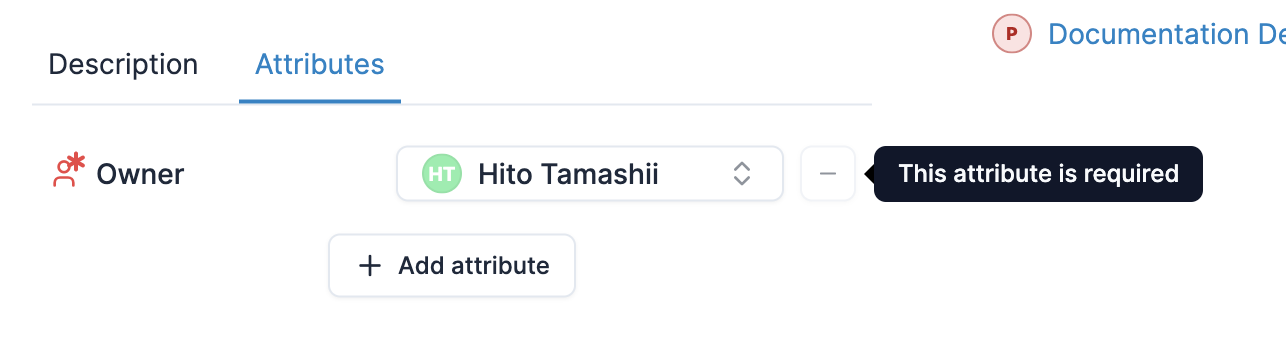
An attribute which is required will automatically show up on components, bypassing the need to manually add it to each component. Required attributes can as such not be removed from their components. (To those familiar with it, this is similar to how the previous attribute system worked.)
Changing the required status of an attribute will not affect any set values. If an attribute is no longer marked as required, it can be removed from the component's attribute list.
Any required attributes which were never given a value will automatically be removed, though.
Missing Required Values
Components with required attributes but without valid values for them will automatically be marked as invalid to help you identify these missing fields. This marker shows up as a warning icon (⚠️) on the components’ icons.
Combined Use
When an attribute is limited to specific types and also made required, it will only show up for components with those types, as expected.
API Integration
Attributes can be programmatically managed using the Attributes API, which allows you to create, update, and assign attributes to components automatically.