Configure Microsoft Entra ID based sign-in
Revision supports a number of identity providers for signing in, Microsoft Entra (formally known as Azure AD) being one of them.
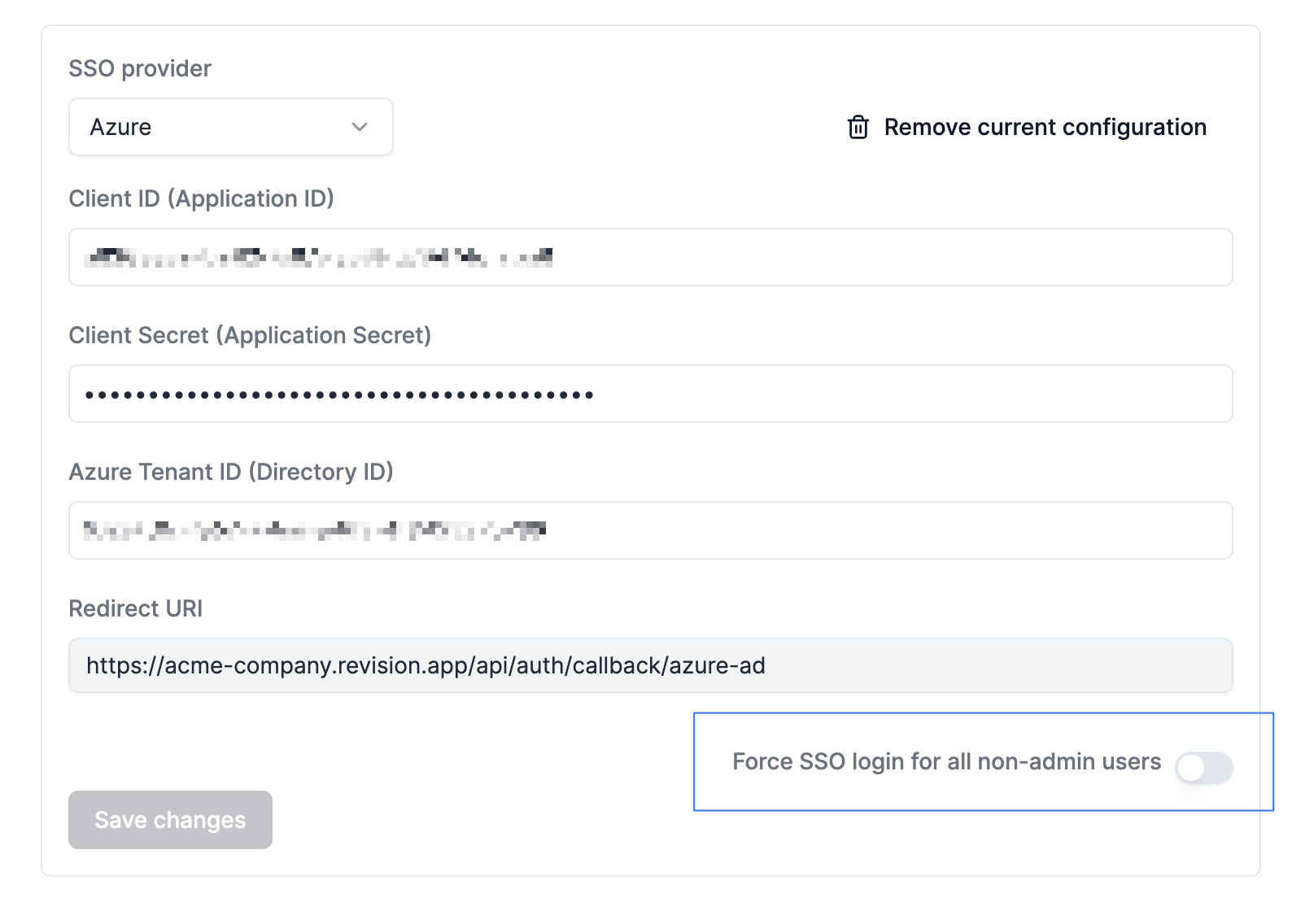
All SSO-based sign-in is configured under "Settings" and "Security" in the app and requires that the users have the Administrator role.
Configure an App Registration in Azure Portal
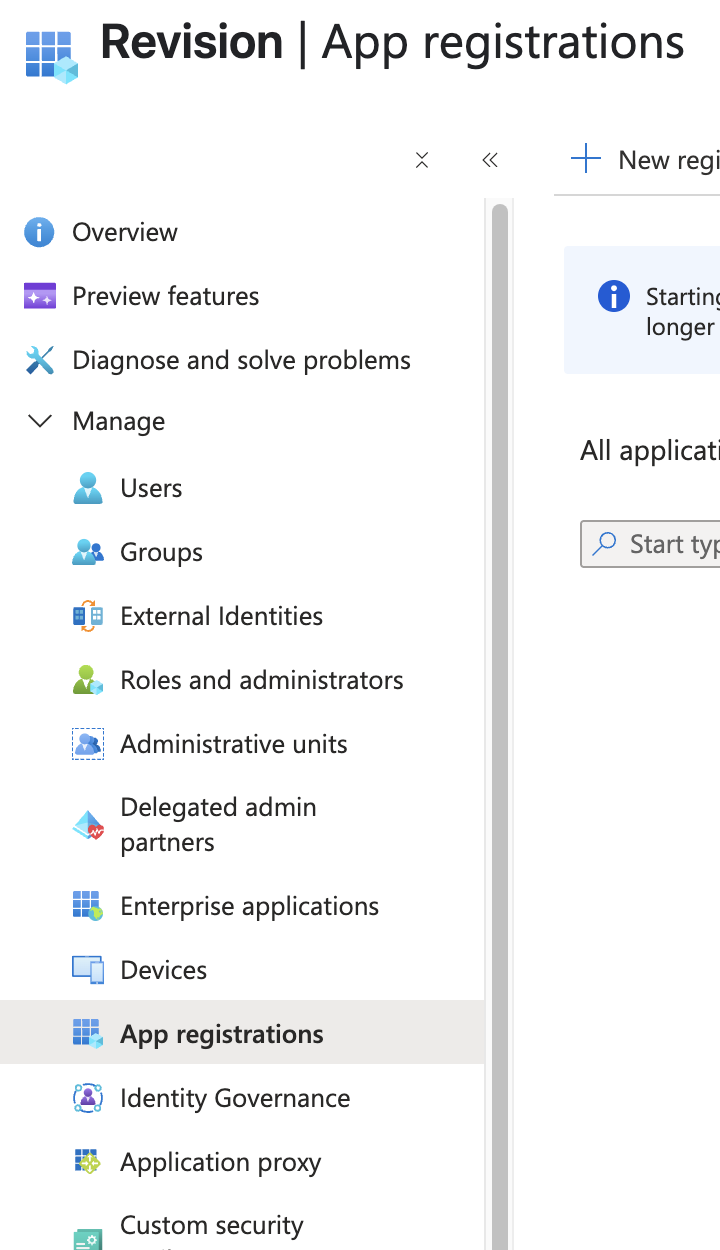
Sign in to the Azure portal and the tenant you are planning to use. Navigate to the Azure Entra ID product and look for the App Registrations.
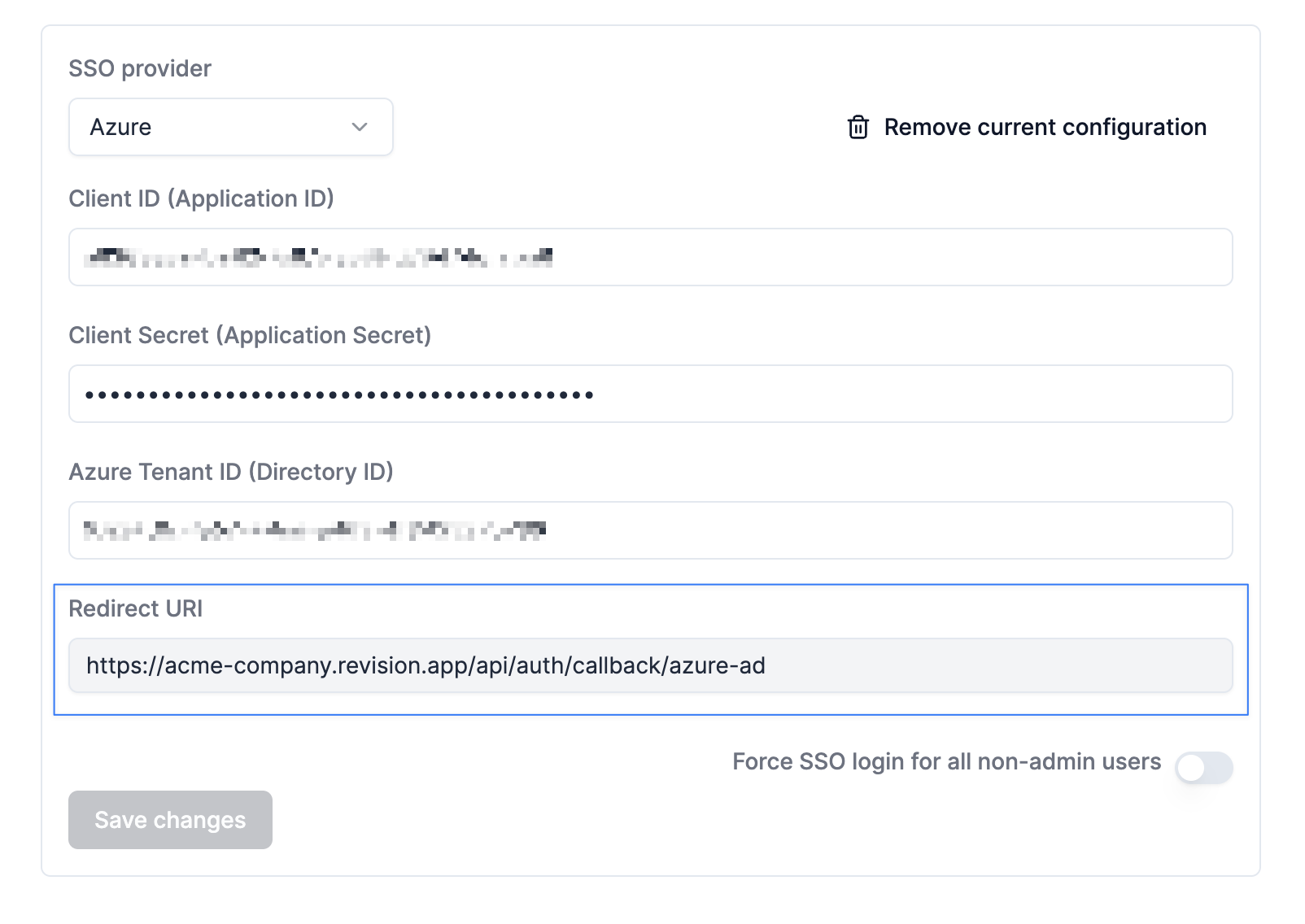
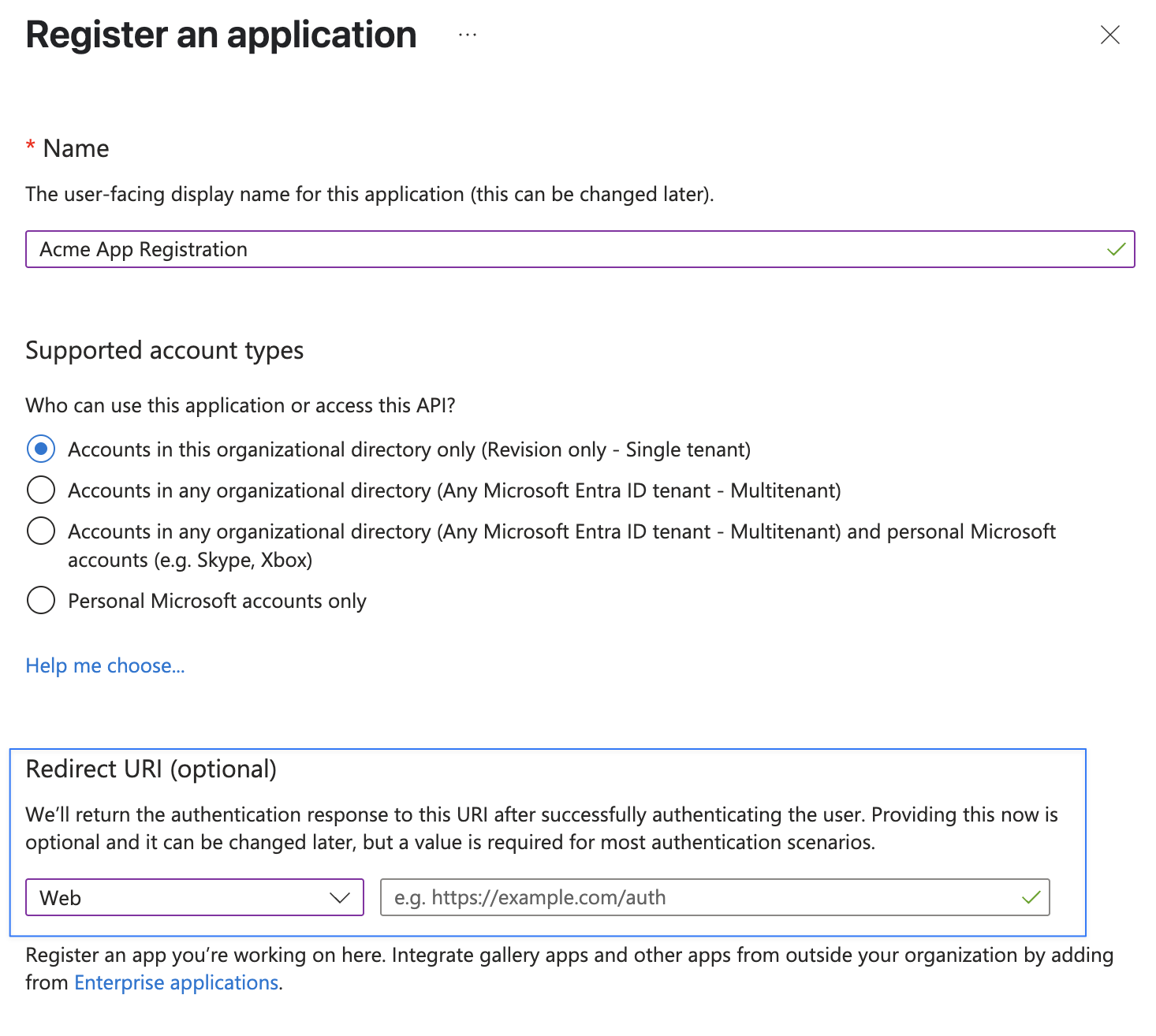
The Azure App Registration needs the Redirect URI from Revision to redirect the user back to the application after sign-in. You can find that URI on the settings page in Revision.
Redirect URI
Client ID and Directory ID
On the overview page for the App Registration, you can see the client ID for the app registration and the Directory ID for your tenant. Copy those values into the Revision form.
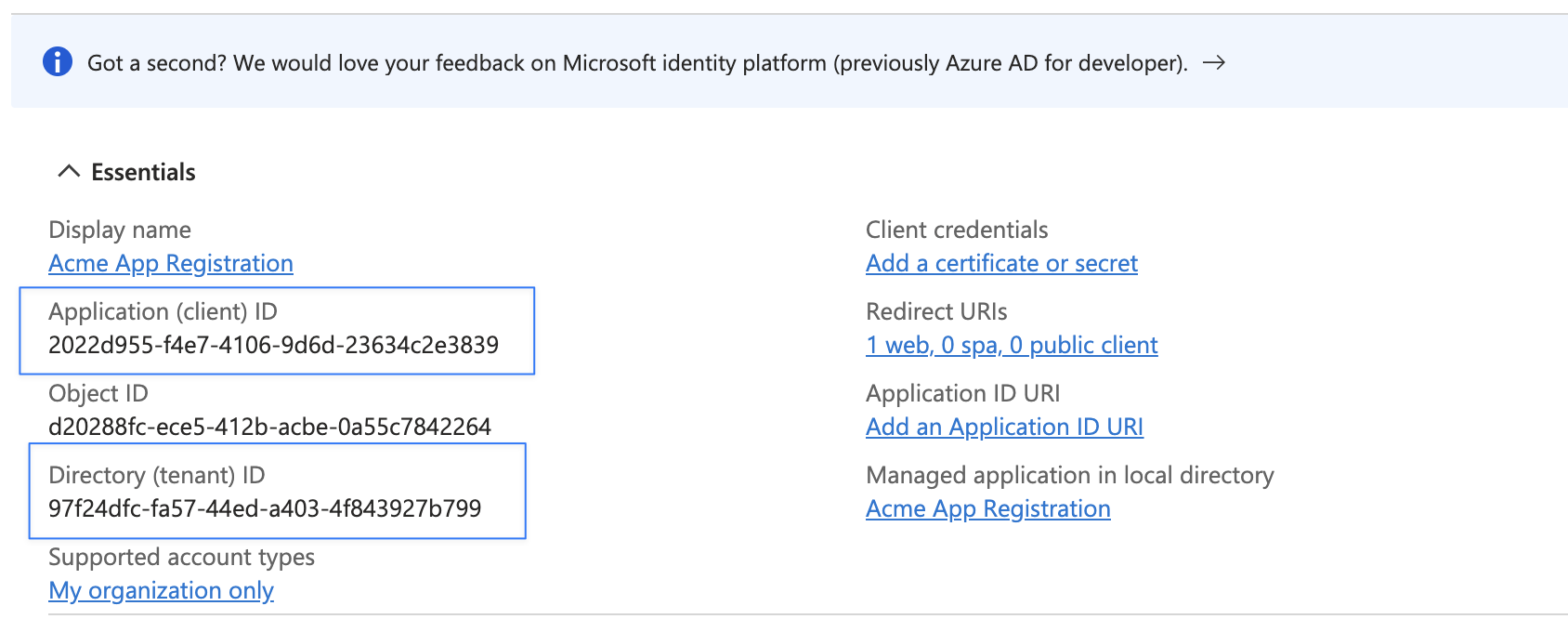
Create client credentials
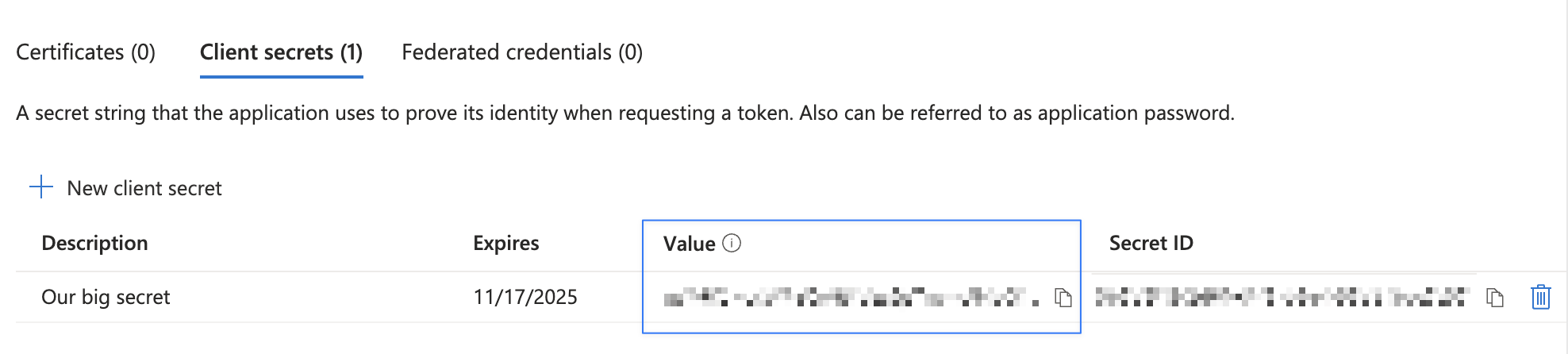
Finally, you need to create client credentials by clicking the "Add a certificate or secret" link on the overview page. Create a new client secret and copy the value to the Revision form.
Require SSO based login
The "Force SSO login for all non-admin users" will disable username and password-based login for all users that don't have the Administrator role. Administrators will still be able to sign in using both methods.